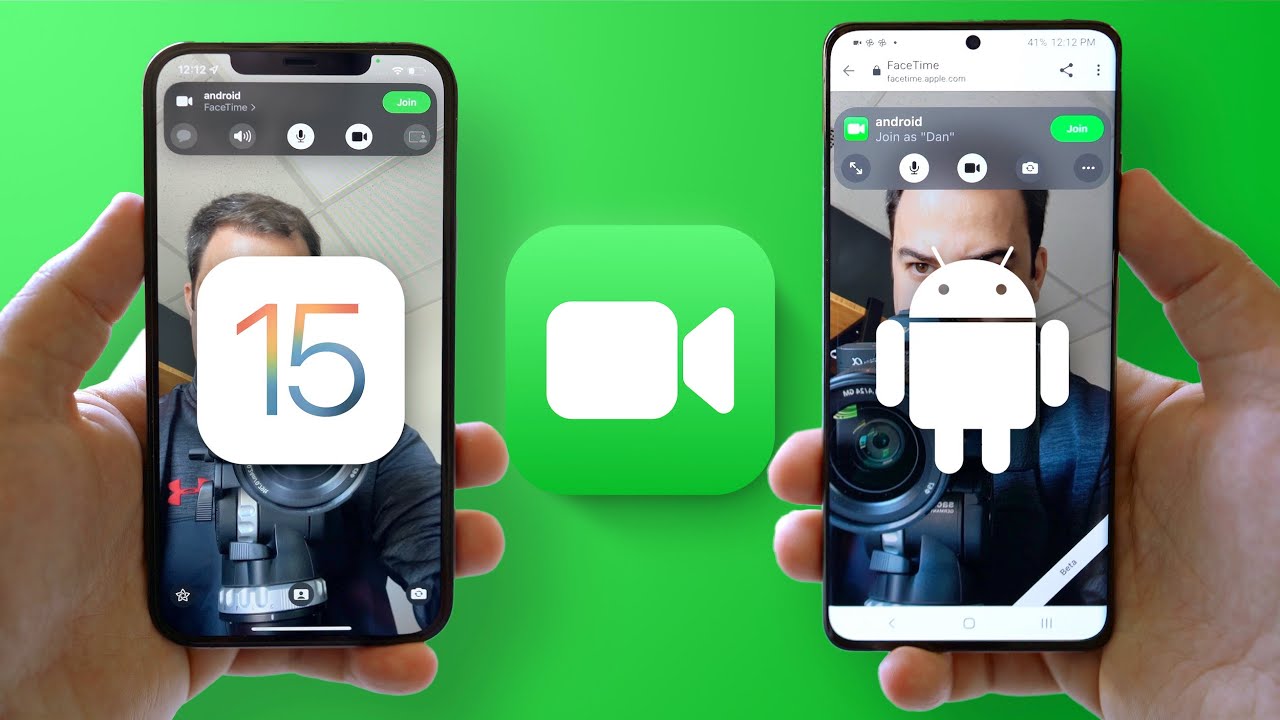
The Core Challenge: Why Android Can’t Run FaceTime Natively
You cannot install the FaceTime app on an Android device or start a FaceTime call yourself. This limitation exists because Apple built FaceTime exclusively for its ecosystem. However, an iPhone, iPad, or Mac user can send you a secure web link that lets you join their FaceTime call directly through your Android phone’s web browser.
This workaround eliminates the frustration of cross-platform communication barriers. When an Apple user creates a shareable link, they’re essentially opening their call to anyone with a web browser. You don’t need special software, a separate account, or any technical knowledge. The entire process takes seconds once you have the link.
What You Actually Need to Join a FaceTime Call on Android
Joining a FaceTime call from Android requires minimal setup. You don’t need to download anything or create new accounts.
Your Android device must have a modern web browser. Google Chrome and Microsoft Edge are the most reliable options, though Firefox and Safari also work. Your device needs either a Wi-Fi connection or a strong cellular data signal. Wi-Fi delivers better video quality and stability, but 4G or 5G networks work adequately for video calls. You must grant your browser permission to access your device’s microphone and camera when prompted during the call setup. This permission request appears automatically and is essential for two way communication.
How FaceTime Links Work: The Bridge Between Ecosystems
Apple created the FaceTime link feature to enable cross platform participation. An Apple user generates a unique, time limited URL from their device. This link can be shared through text messages, email, social media, or any messaging app. The link remains active only while the host is available to accept participants.
When you tap the link on your Android device, your browser launches a lightweight web version of FaceTime. This isn’t a stripped down version with missing features; it’s specifically designed for web access. The connection uses the same end to end encryption that protects native FaceTime calls, so your conversation remains private and secure.
How Apple Users Generate the Link
The process starts with the Apple user. They must create and share the link before you can participate.
The Apple user opens their FaceTime app on their iPhone, iPad, or Mac. They look for the “Create Link” button, which typically appears near the top of the app interface. Tapping this button generates a unique URL. A sharing menu appears with options to send the link through Messages, Mail, or copy it to the clipboard for pasting into other apps like WhatsApp, Telegram, or Facebook Messenger. Once the link is sent, the Apple user waits for you to request entry into the call.
How Android Users Join the Call
Joining takes just a few moments once you receive the link. Tap the FaceTime link you received. Your default web browser opens automatically. A welcome screen appears asking for your name. Enter your name so the host knows who’s requesting to join, then tap “Continue.” Your browser requests permission to access your camera and microphone. Tap “Allow” to proceed. A “Join” button appears on the screen. Tap it to send your join request to the host. You’ll see a “Waiting to be let in” message while the host reviews your request. Once the host approves you in their FaceTime app, you’re connected to the call.
Managing Call Features During Your FaceTime Session
The web interface provides essential controls positioned at the bottom of your screen. A toolbar contains several icons for different functions. The microphone icon mutes and unmutes your audio. The camera icon turns your video on or off. A camera flip icon switches between your front facing and rear facing cameras. The grid icon adjusts the layout when multiple people are on the call. The red “Leave” button ends your participation and closes the call window.
Know the Available Features
These controls cover the core functionality needed for video conversations. Advanced features like SharePlay, Memoji, screen sharing, and live translation are exclusive to Apple’s native apps and aren’t available through the web browser version. This limitation affects only power users who rely on these specific features.
Troubleshooting: Solving Common FaceTime Link Problems
Most issues with FaceTime web links have straightforward solutions. If the link won’t open, verify you’re using an updated version of Chrome or Edge. Check your Android device’s app store for browser updates. If you can’t hear the other person or they can’t hear you, the issue usually involves microphone permissions. Go to your Android Settings, select “Apps,” find your browser, and check that microphone access is enabled. Restart the browser and try the call again. If video quality drops or the connection becomes unstable, move closer to your Wi-Fi router or switch to a stronger cellular network.
Poor internet bandwidth is the most common cause of video freezing or audio delays. If you’re stuck on the “Waiting to be let in” screen, contact the host directly and ask them to approve your join request in their FaceTime app. Sometimes the host doesn’t notice the join notification.
Frequently Asked Questions About FaceTime on Android
Can I start a FaceTime call from my Android phone?
No. Android users cannot initiate FaceTime calls. You can only join calls after receiving a link from an Apple user. If you need to start a video call with an iPhone user, you’ll need to use alternative apps like Google Meet, WhatsApp, or Zoom.
Do I really need to download an app to use FaceTime on Android?
No app download is required. You join directly through your web browser. This is one of the main advantages of the web link system. It works on any device with a modern browser.
Is my FaceTime call on Android secure and encrypted?
Yes. Calls joined through web links use the same end to end encryption as native FaceTime calls. Your conversation cannot be intercepted or monitored by third parties, including Apple.
Why can’t the other person hear me during the call?
This typically happens when you denied microphone permissions when joining. Check your browser settings and ensure it has permission to access your microphone. You may need to restart the browser and rejoin the call.
Can I join group FaceTime calls from Android?
Yes. Group calls work exactly the same way as one on one calls. The Apple user creates a link and invites multiple people. You join using the same process described in this guide.
What features am I missing when using FaceTime on Android?
Android users don’t have access to SharePlay (watching videos or workouts together), Memoji, screen sharing, or live translation. You get basic video and audio functionality, which covers most casual video calling needs.
Will the FaceTime link work on my older Android phone?
As long as your device has a modern web browser and a stable internet connection, it should work. Very old devices with outdated browsers may experience compatibility issues. Update your browser to the latest version for the best results.
How long does a FaceTime link stay active?
Links remain active only while the host is in the FaceTime app and available to accept participants. Once the host closes the app or ends the call, the link becomes inactive. You cannot rejoin using an old link.
Can I use FaceTime on Android without Wi-Fi?
Yes. A strong 4G or 5G cellular connection works fine. Wi-Fi is recommended because it typically offers more stable bandwidth and faster speeds, but cellular data is a viable alternative.